Welcome to
25Tim.Com

Microsoft Excel Admin Assessment:
INSTRUCTIONS:
Microsoft Excel Admin Assessment
STEP 2: Give the handout to the
admin candidate
STEP 3: Immediately have the
candidate explain each task to you.
STEP 4: If the candidate cannot
explain each task successfully,
they should not be considered
"client-ready".
If your admin placements are
not 'client ready',
leave me a message. I can help.
Contact information
is at the bottom of this page.
Instructions:
Explain how to creat a pivot table viewing the image below. Click to view solution
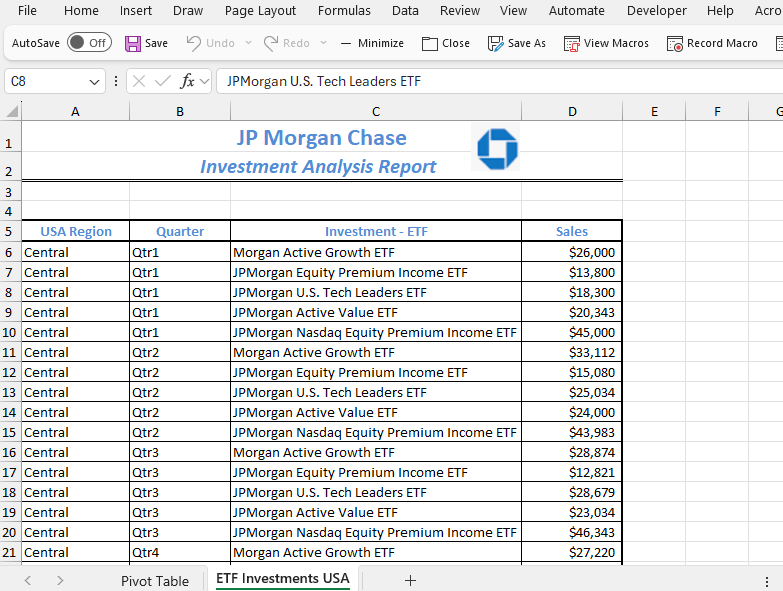
Instructions:
In the task above you created a Pivot Table. Explain how to create Slicers. Click to view solution
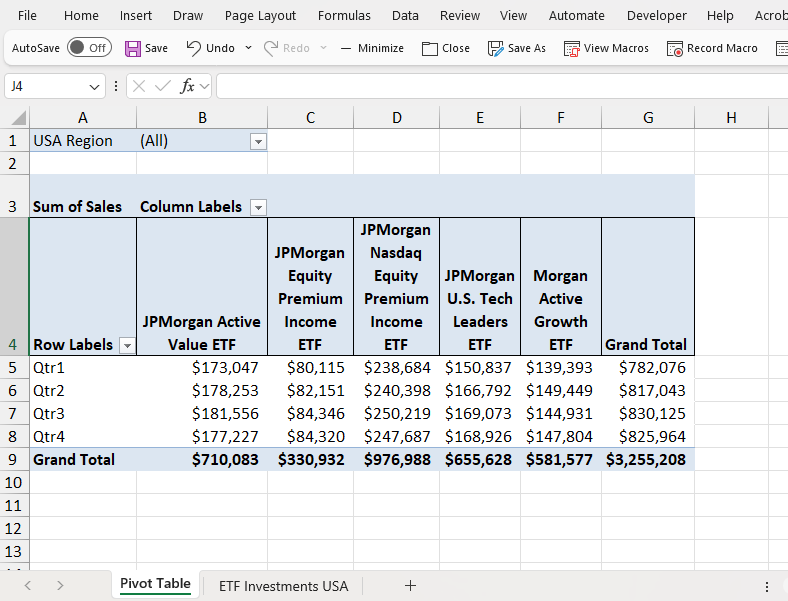
Instructions:
This page is printing an extra blank page. Explain how to fix this printing problem. Click to view solution
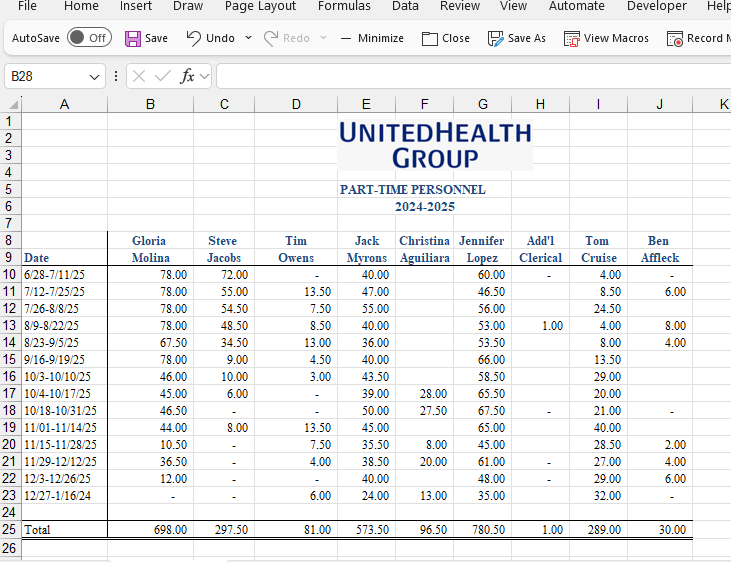
Instructions:
Explain what formula used to create a total answer when filtering data. Click to view solution
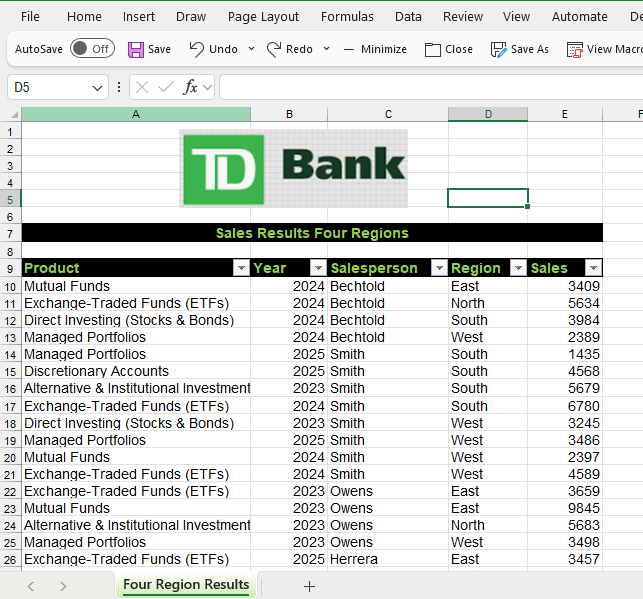
Instructions:
Explain which formula to use to find Celebes coffee total sales. Click to view solution
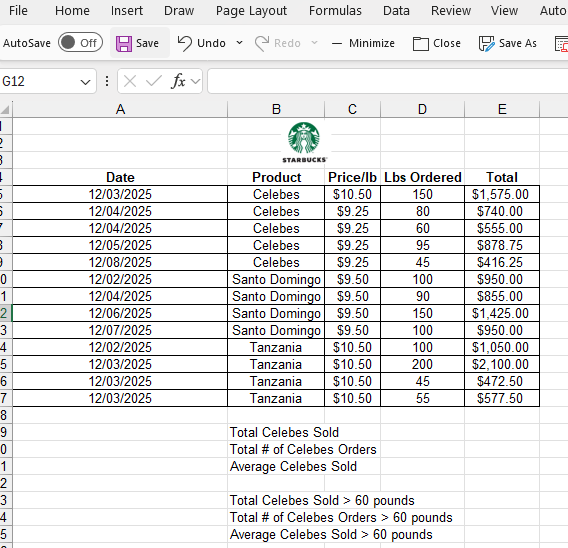
Instructions:
Explain which formula to use to find Celebes coffee total sales greater than 60 lbs. Click to view solution
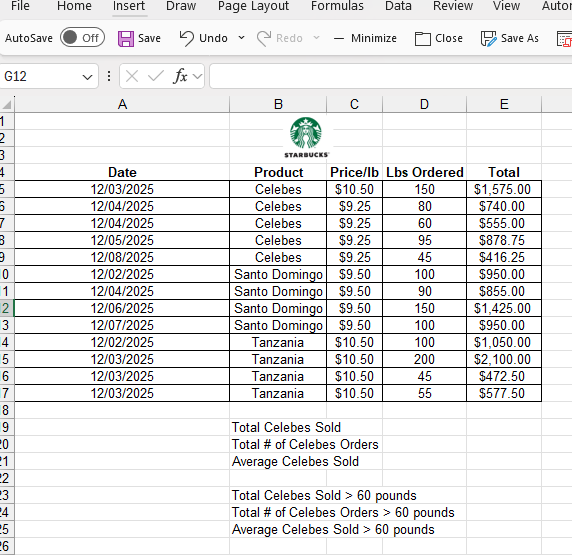
Instructions:
Explain how to use a formula to remove the leading spaces in column A. Remove the leading spaces using a formula and put the answer in column D. Click to view solution
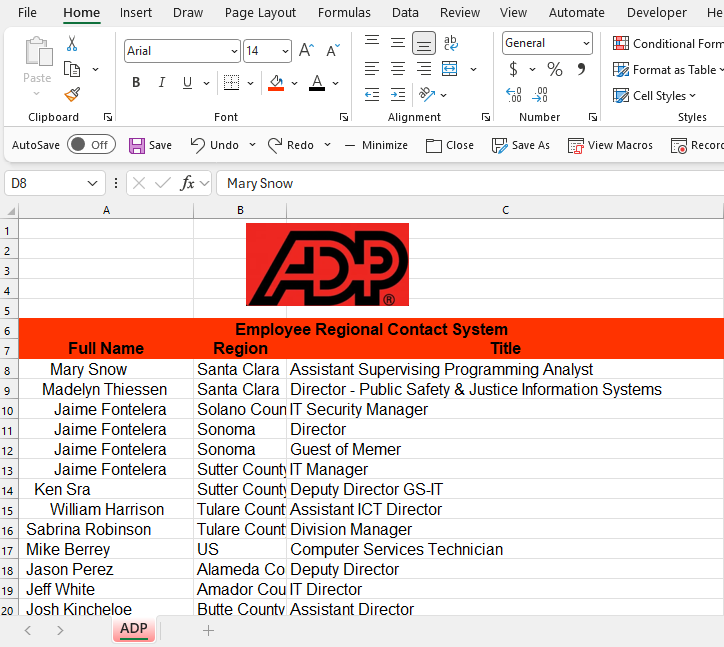
Instructions:
You completed task #1 from above and you deleted column A. Explain the error in column C and how to fix it. Click to view solution
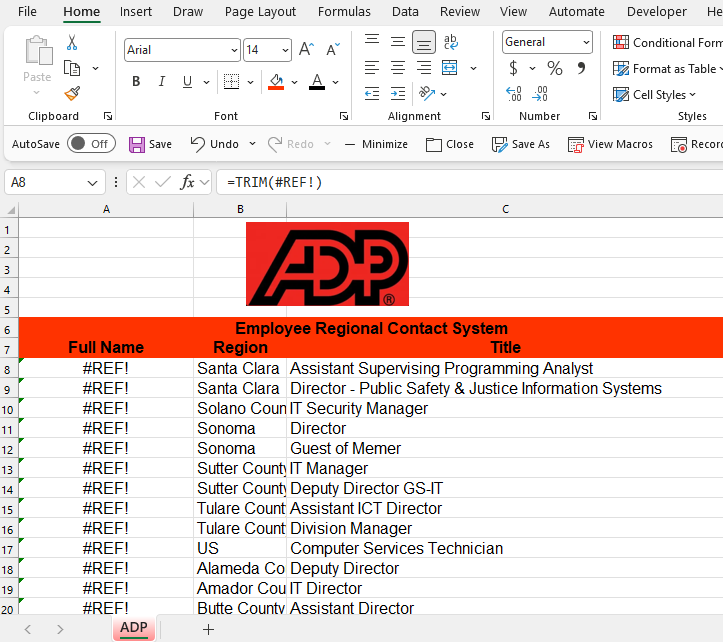
Instructions:
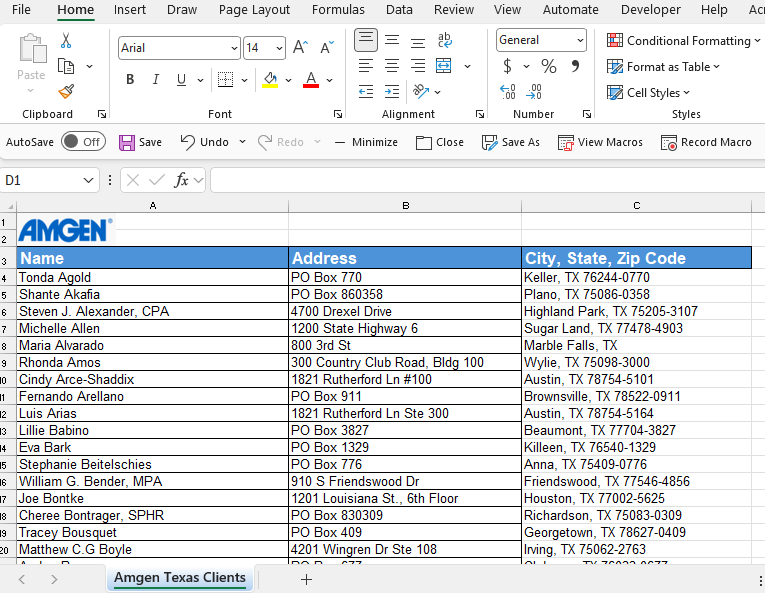
Notice column C currently includes the city name, state abbreviation, and zip code.
The client has the spreadsheet on her desk (image below). She asks you to help her separate the city name into column C (by itself), and state abbreviation and zip code (together) in column D. Explain how to do that for the client.
Click to view solution
Instructions:
You are working at an investment bank. Lisa is the director at the investment bank and she is the one you report to.
Lisa recently finished a course in project management and now wants to implement some of her new found project management skills.
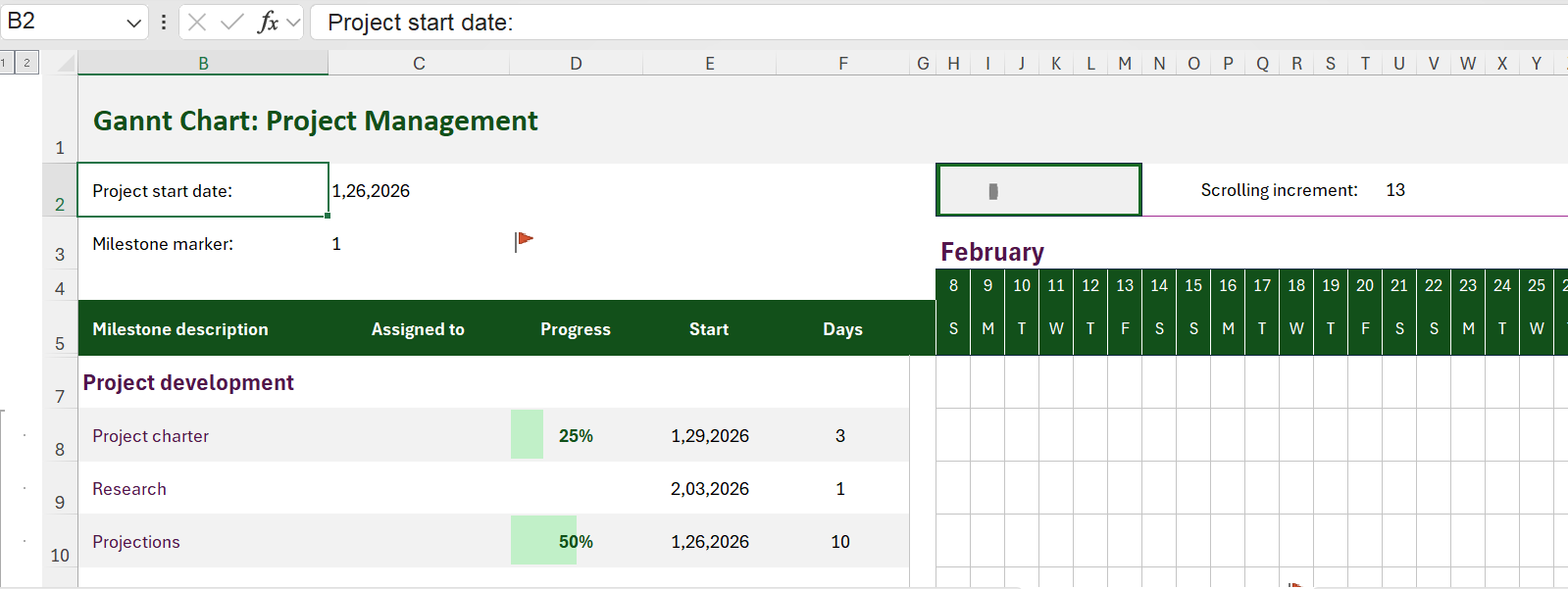
Gantt charts are one of the primary tools used in project management.
Lisa requests for you to create a Gantt chart using Excel. You open Microsoft Excel and have a new blank workbook on your screen. Explain how to create a Date Tracking Gantt chart from scratch.
Click to view solution
Instructions:
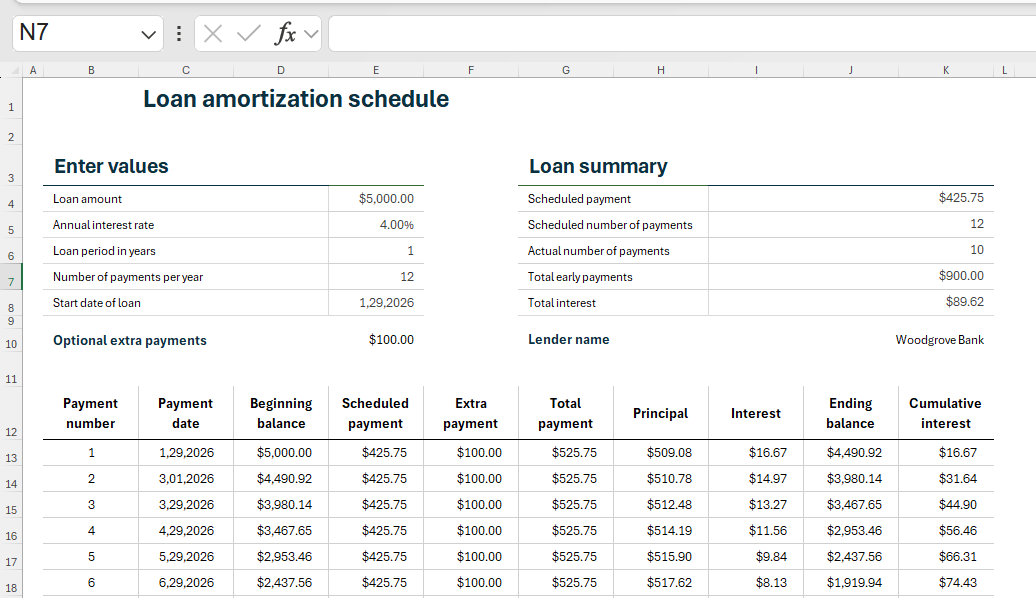
You are at the clients office. The client request you to create a loan ammortization table with the following variables: loan amount $5,000: Annual Interest Rate 4.00%, and the others (view image below). You open Excel and have a new blank workbook on your screen. Explain how to create this loan amortization table. Click to view solution
Instructions:
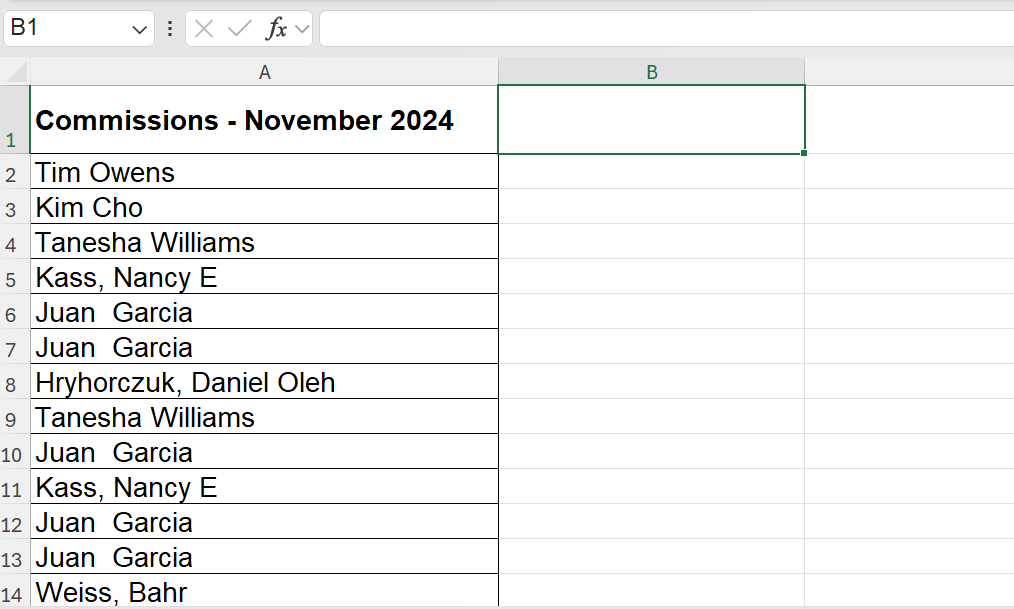
Column A includes duplicate entries. The client wants you to mark all duplicates in red, put the duplicates at the top for easier viewing, and lastly remove the duplicates.
Explain three things:
how to mark duplicates in red,
Click to view solution
how to sort duplicates to the top of the column for easy viewing,
Click to view solution
how to remove them (duplicates).
Click to view solution
Instructions:
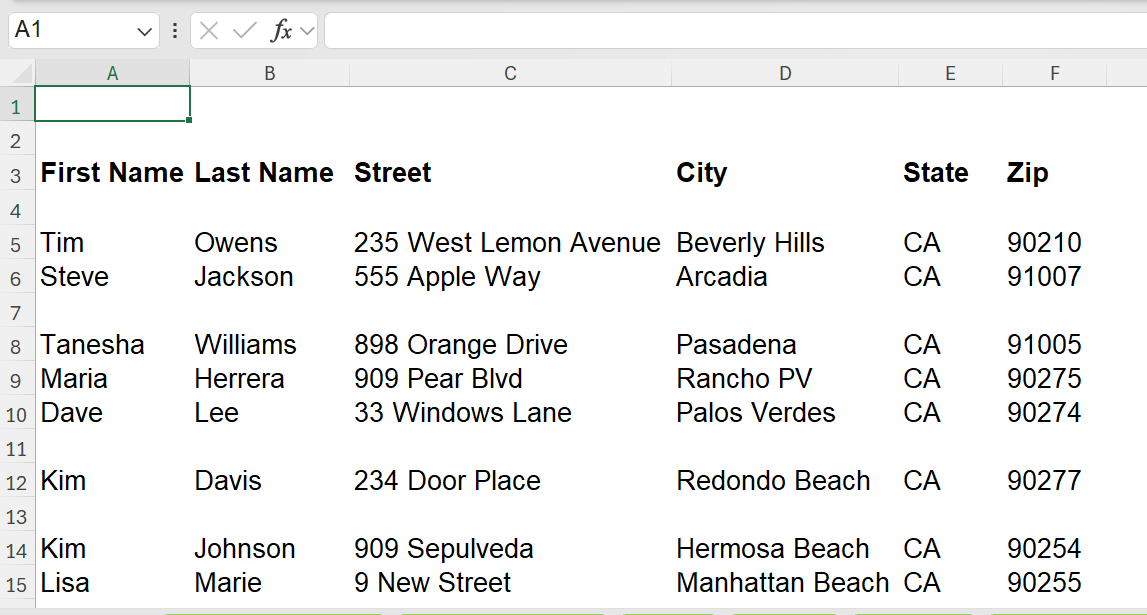
You are at the clients office. The previous employee typed the information incorrectly (image below).
Rather than First Name, Last Name, Street, City, State, and Zip typed in Column A, the client preferes the data to be typed as it is in row 12.
Explain how you would remove the data in A2 through F7 and put the same data so it looks like the data in range A12 through F17.
Click to view solution
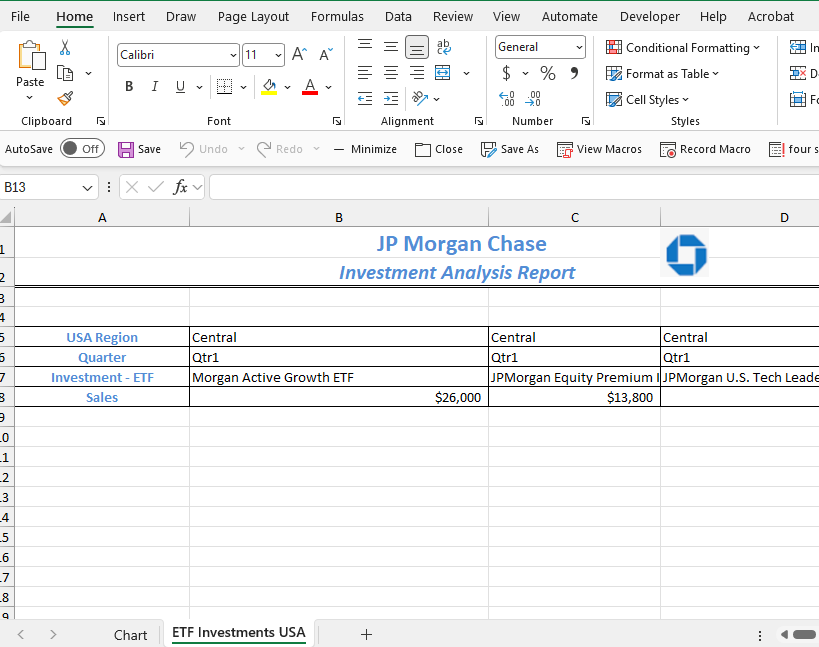
Instructions:
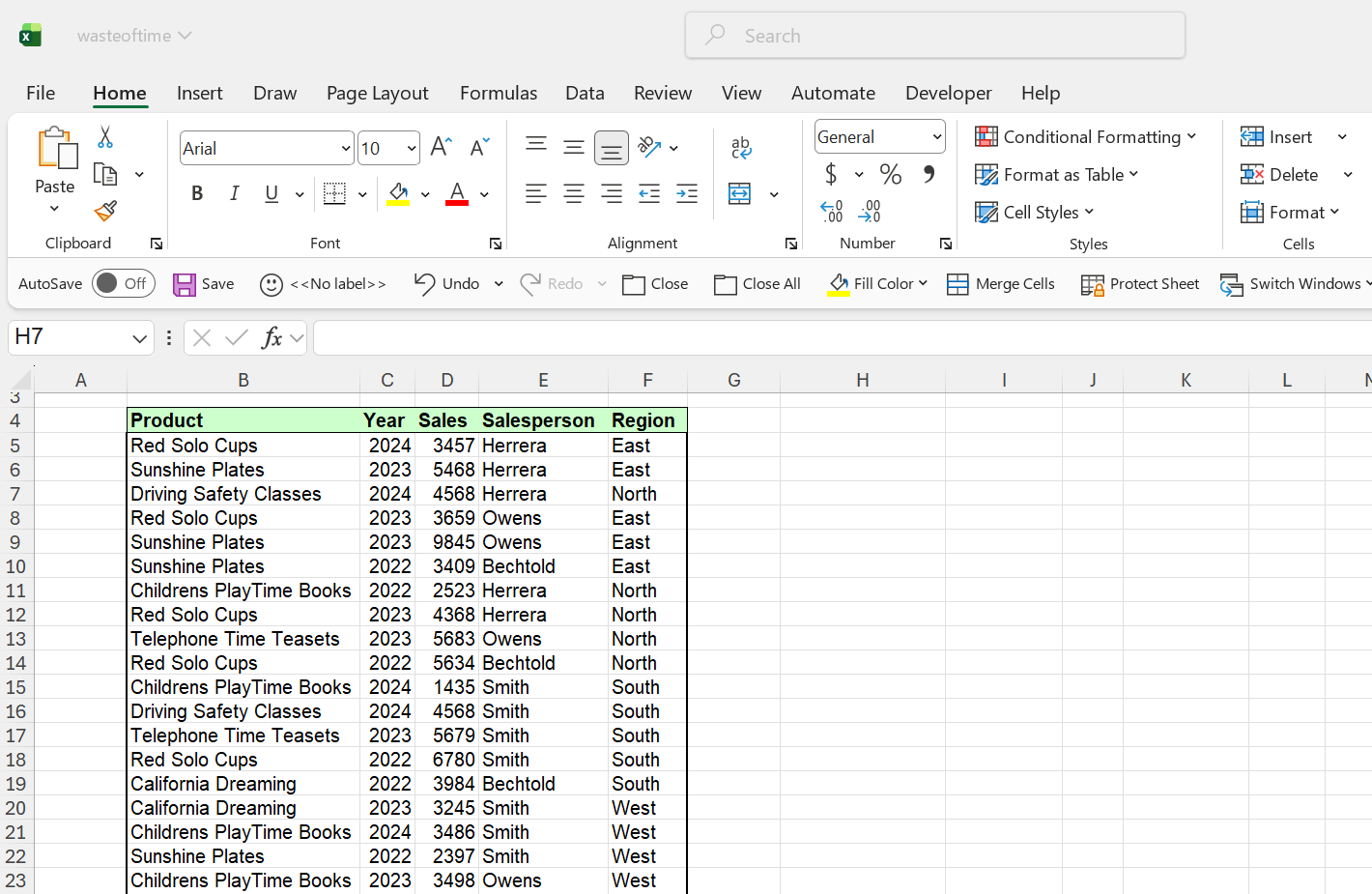
The client presents this spreadsheet to you and wants to highlight the top 3 highest values in the sales column. Explain how to do that.
The client now request to show the top 8 values in the same column. Explain how to do that.
Finally, explain how to remove the criteria so no values are highlighted.
Click to view solution
Instructions:
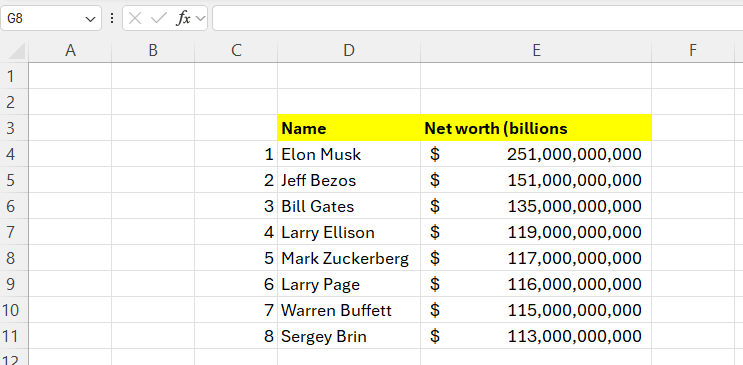
The client does not want to show nine zeros and would rather replace the nine zeros with the letter B (view image below).
Explain how to replace the nine zeros with the letter B.
Click to view solution - soon
Instructions:
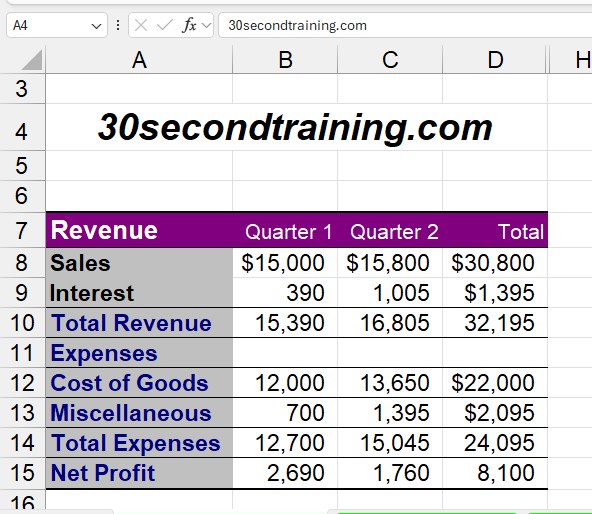
The client is tired of employees deleting the cells with formulas. Please explain how to protect all cells that include formulas so they cannot be modified or deleted.
Explain how to protect cells that only include formulas. Click to view solution - soon
Instructions:
Explain the quickest way to remove all blank rows efficiently. Click to view solution - soon
Instructions:
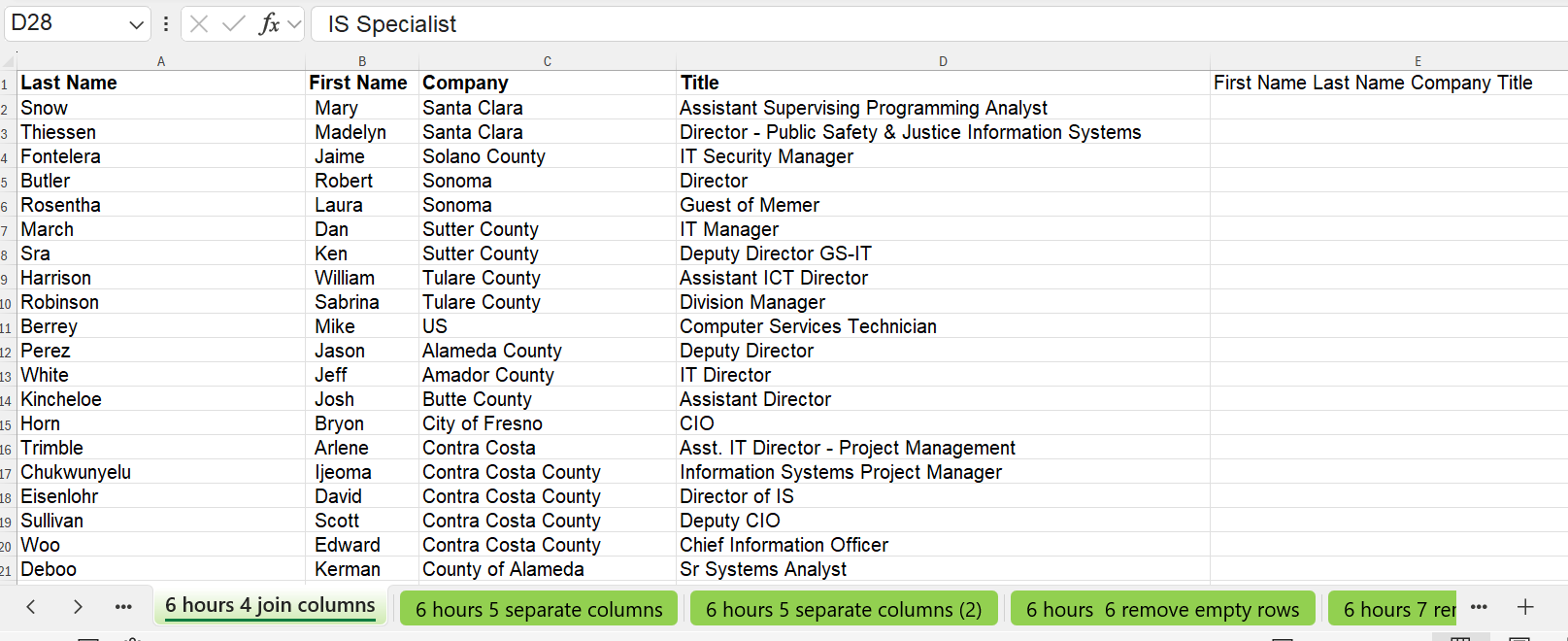
The client gives you this spreadsheet that includes the Last Name in column A and First Name in column B.
The client asks you to show her how to combine First Name and Last Name into column E (in that order). Explain how to do this and what formula you use. Click to view solution - soon
Instructions:
You will create a macro named
ten_sheets
Every so often you want your workbook to have ten tabs (worksheets).
Explain the steps to create this macro. Please note: you will re-use this macro each day so it should be available to all newly created workbooks. Click to view solution - soon
Instructions:
Explain how to run (execute) the macro you created above. Click to view solution - soon
Instructions:
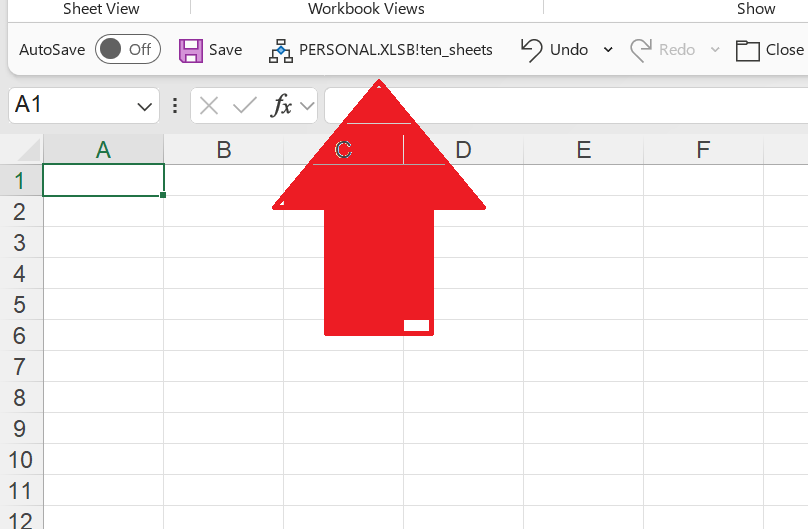
Explain how to put a macro on the Quick Access Toolbar.Click to view solution - soon
Instructions:
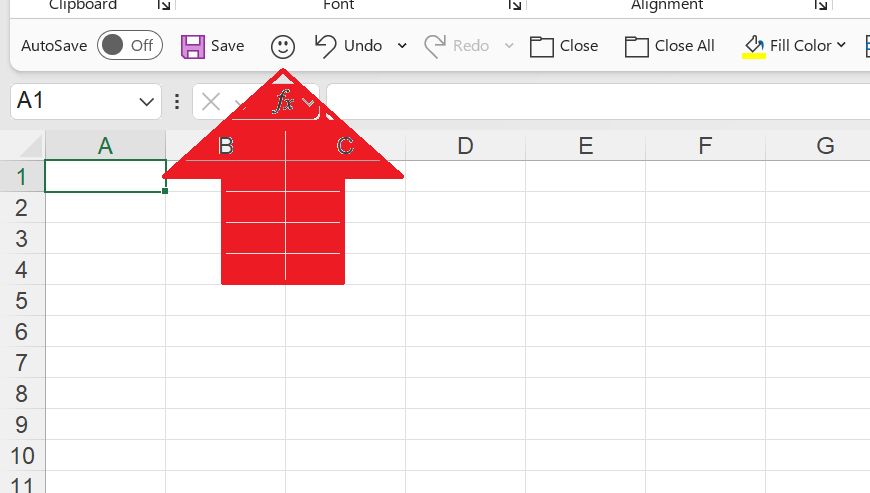
You have completed Task 15 above. Explain how to customize the macro to show a happy face icon and the macro name.Click to view solution - soon
Tim Owens is a Admin Professional Consultant
Saving staffing agency owners millions in revenue since 2006
Hero to the modern-day Admin Professional


Contact Tim Owens
Phone: 1-(310)-625-7711
Unfortunately no texting
Los Angeles office
Email: tvowens@outlook.com