16 most common Microsoft Excel day to day tasks.
Scroll down to view more.
1. Look at the image below.
(L3/V#25-26/120 "trim" 27.)/h2>
Instructions:
In cell D2, explain how to create the formula you would use to remove the extra
spaces in front of the name in cell A2.
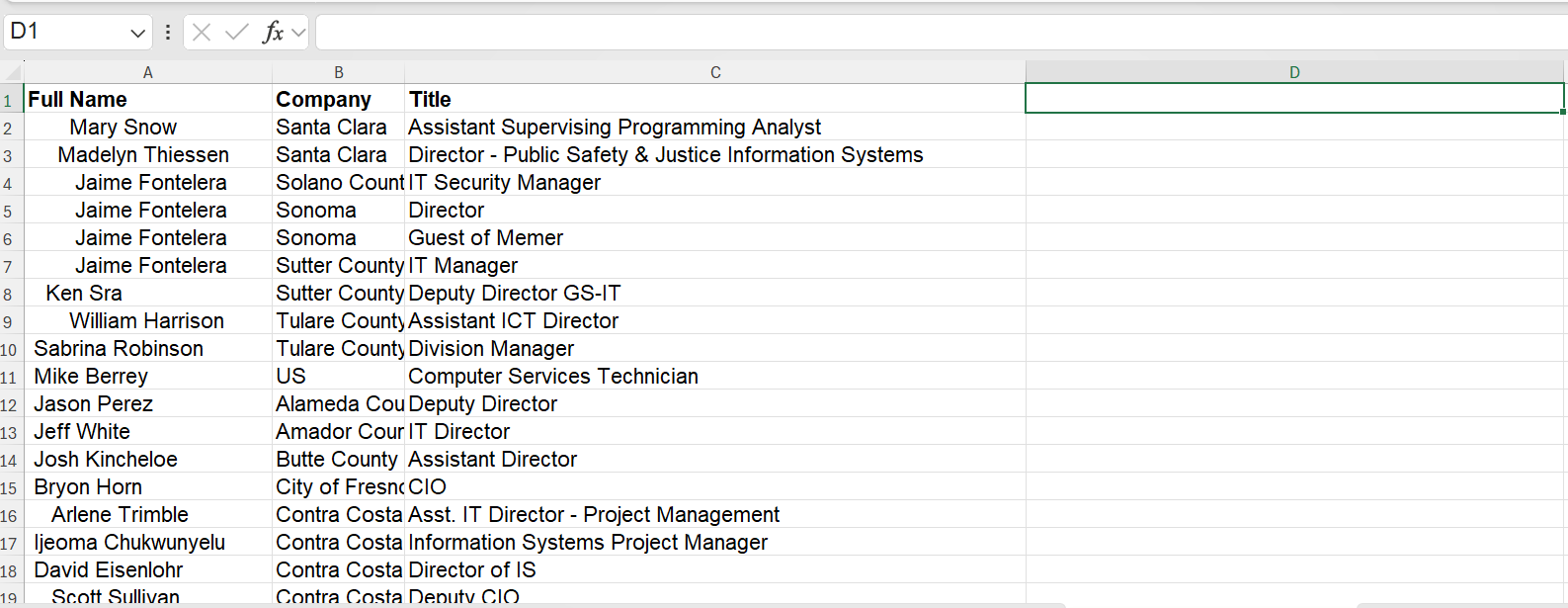
Look at the words in column A.
Notice some words in column A have empty spaces before the word.
You will click on cell d2 and create a formula to show the same
data in column a without the empty spaces.
Explain with formula and how you would do it. (20)
Click for answer video
Task 2. Fix The Error Message / 25
7/19/53 "value" 19.
Instructions:
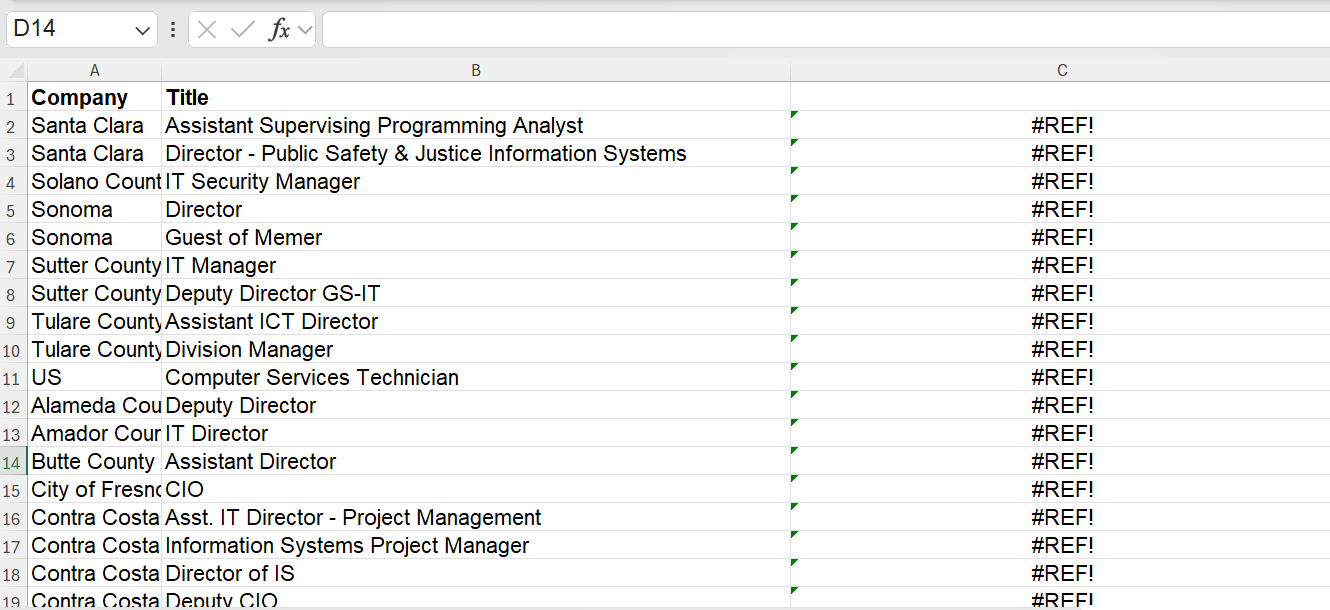
You have completed 1 (above). Explain the error message in column C and how you would fix it.
Click for answer video
Task 3. Separate Columns / 58
1/19/58 "separate" 19.
Instructions:
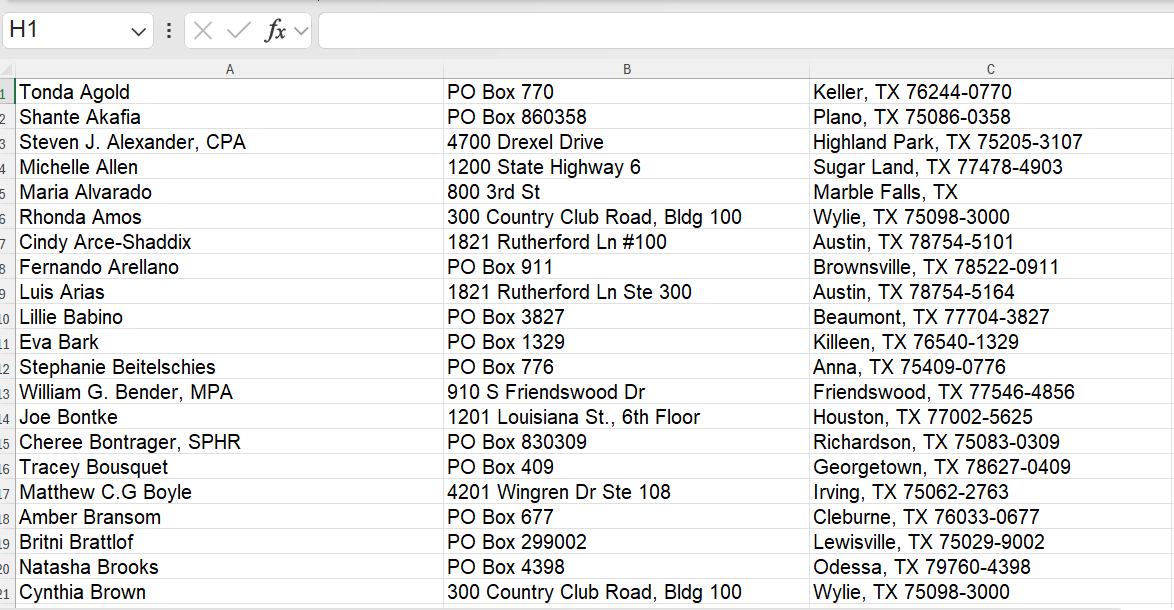
Explain the steps you would take to separate the city, state, and zip
into their own column.
If necessary, click the image below to make it larger. Image opens in a new window.
Click for answer video
Task 4. Gantt / 24
8/9/39 "gantt" 9.
Instructions:
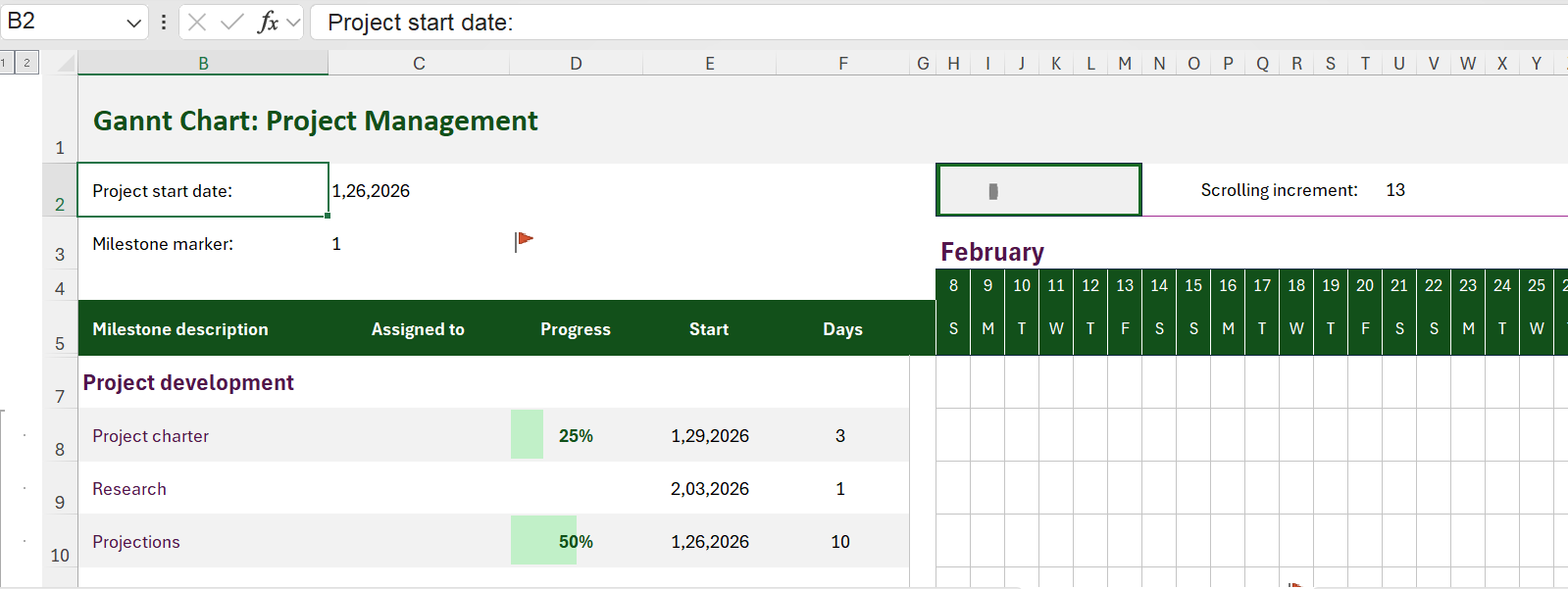
Explain the steps you would take to open a new workbook and create this Gantt chart.
If necessary, click the image below to make it larger. Image opens in a new window.
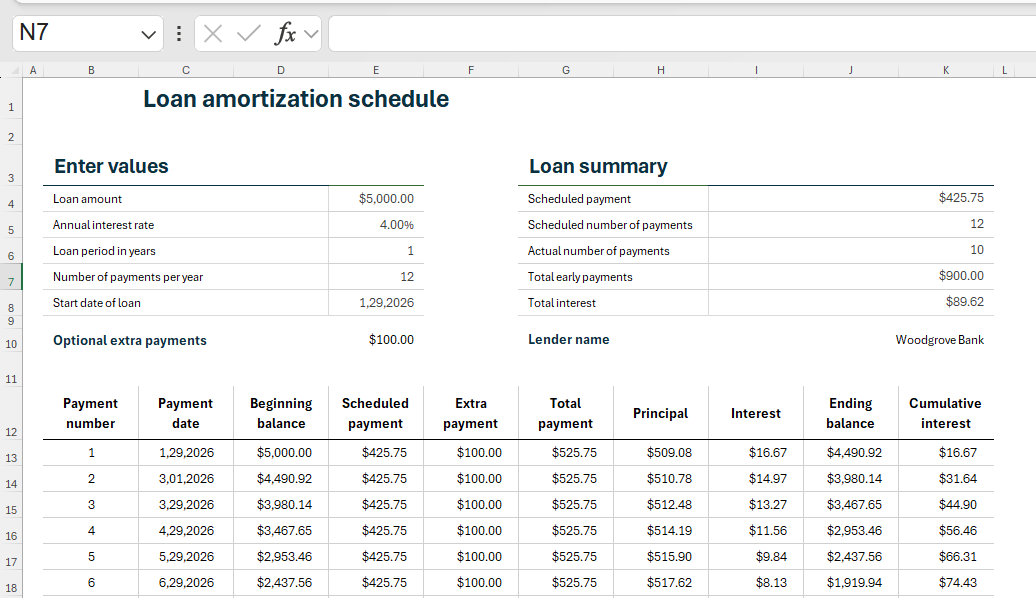
Task 5. Loan / 24
8/13/32 "loan" 13.
Instructions:
Explain the steps you would take to open a new workbook and create this loan table.
If necessary, click the image below to make it larger. Image opens in a new window.
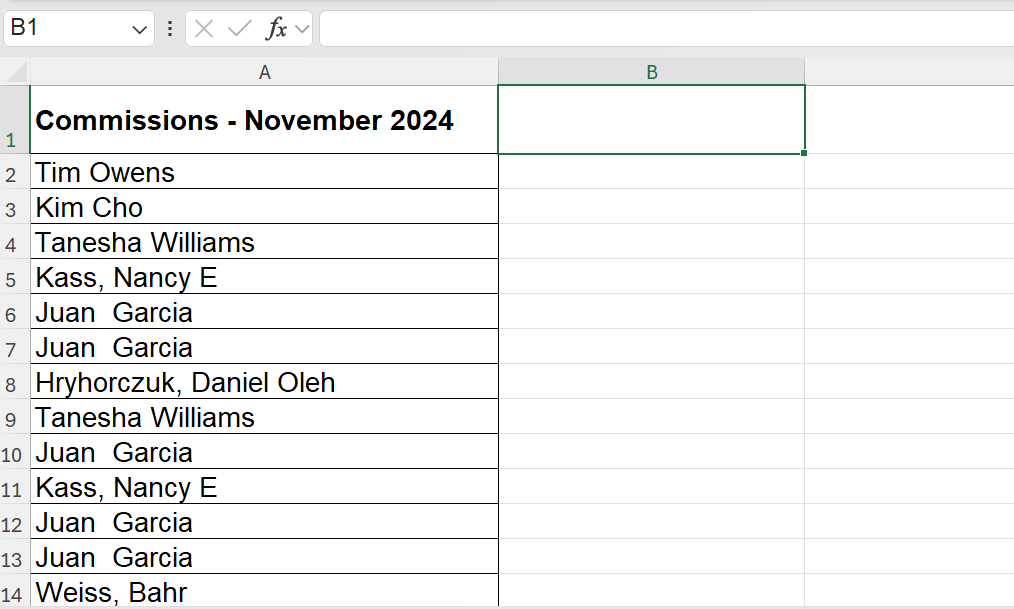
Task 6. Mark, Sort, Remove / 45
mark 2/11/39
"duplicate" 11.
sort 7/8/46
"duplicate" 8.
remove 7/10/29
"duplicate" 10.
Instructions:
In column A there are over 5,000 entries and over 1,000 duplicates.
Explain the steps you would take to:
(1) Mark duplicates in red
(2) Sort red to the top
(3) Remove duplicates
If necessary, click the image below to make it larger. Image opens in a new window.
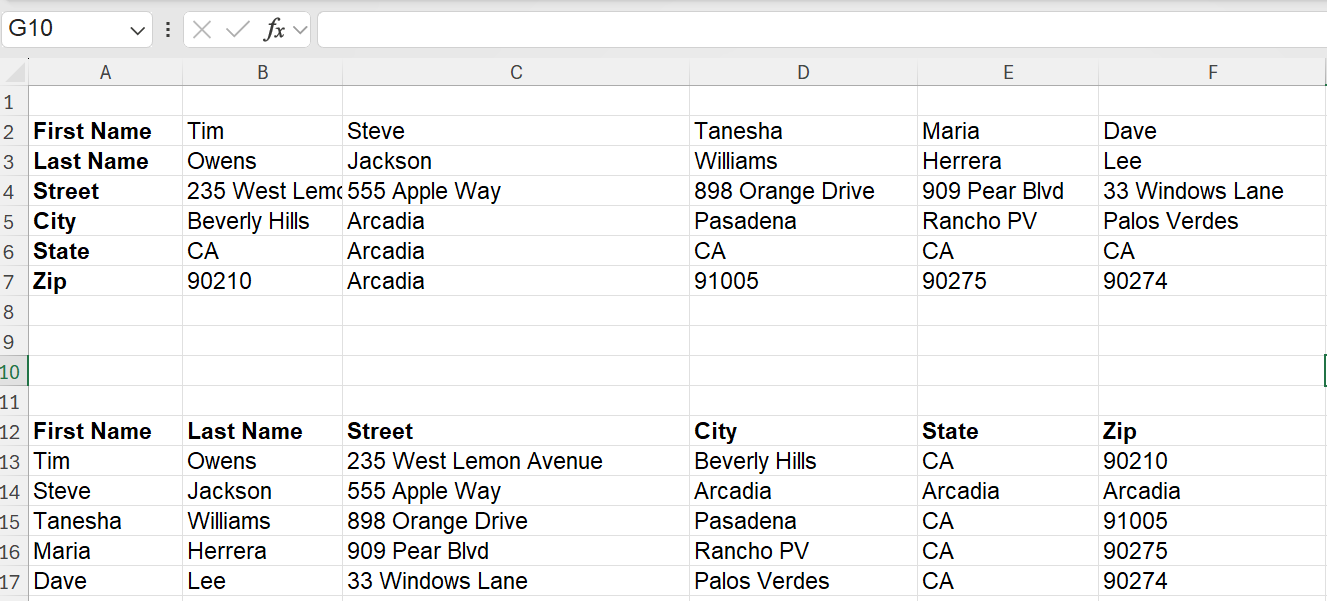
Task 7. Make It Vertical / 16
3/23-24/58 "transpose" 24.
Instructions:
Explain how you would change the data in A2 through F7 so it appears in A12 through F17
If necessary, click the image below to make it larger. Image opens in a new window.
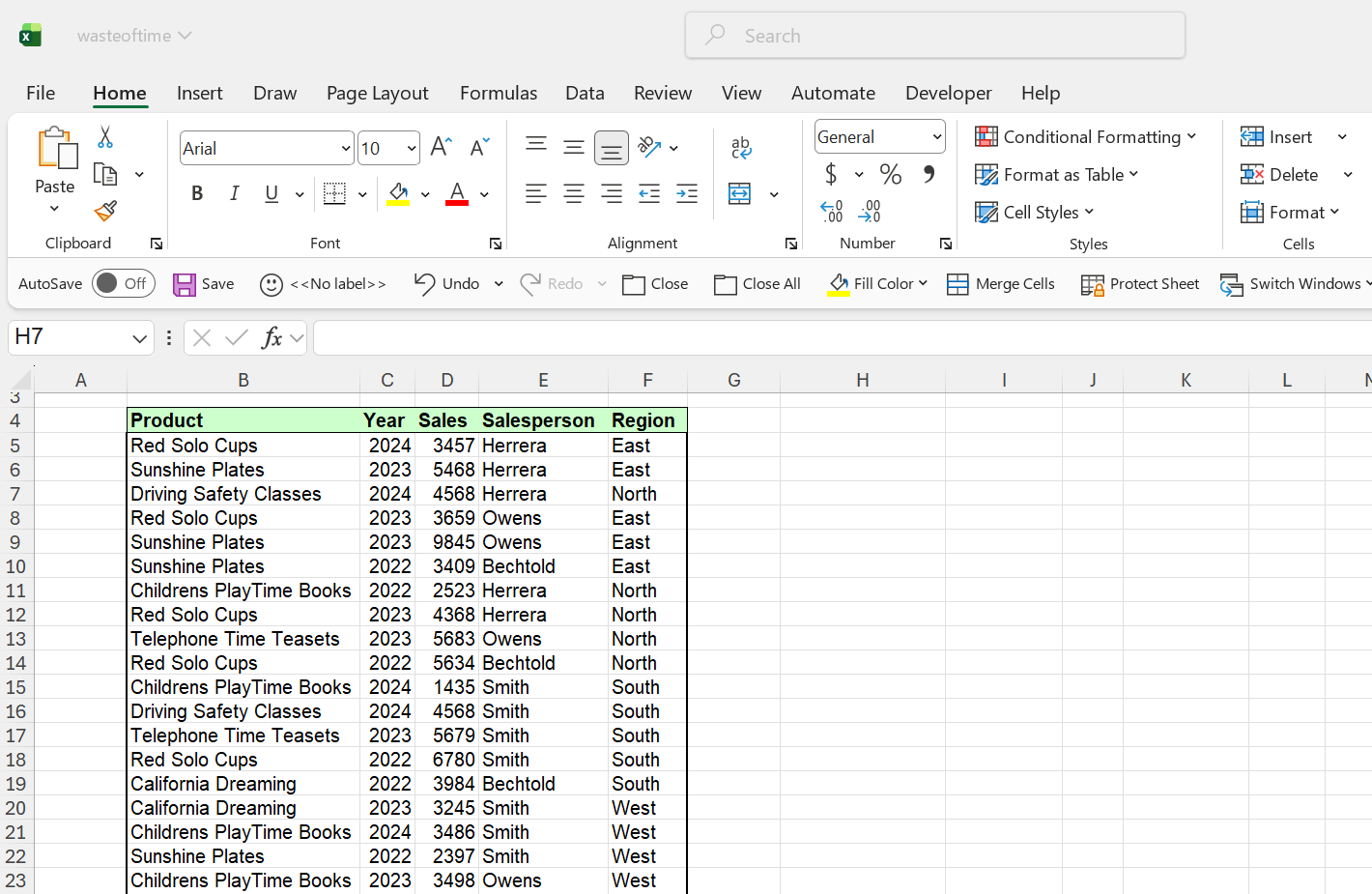
Task 8. Top 10 and then Top 3 / 14
7/22/51 "top" 22.
Instructions:
Explain how to mark the top 10 sales values using
“Light Red Fill with Dark Red Text,” then change it to show only the top 3.
If necessary, click the image below to make it larger. Image opens in a new window.
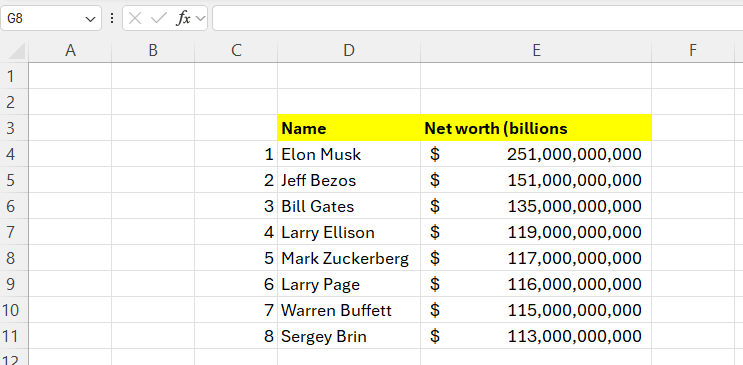
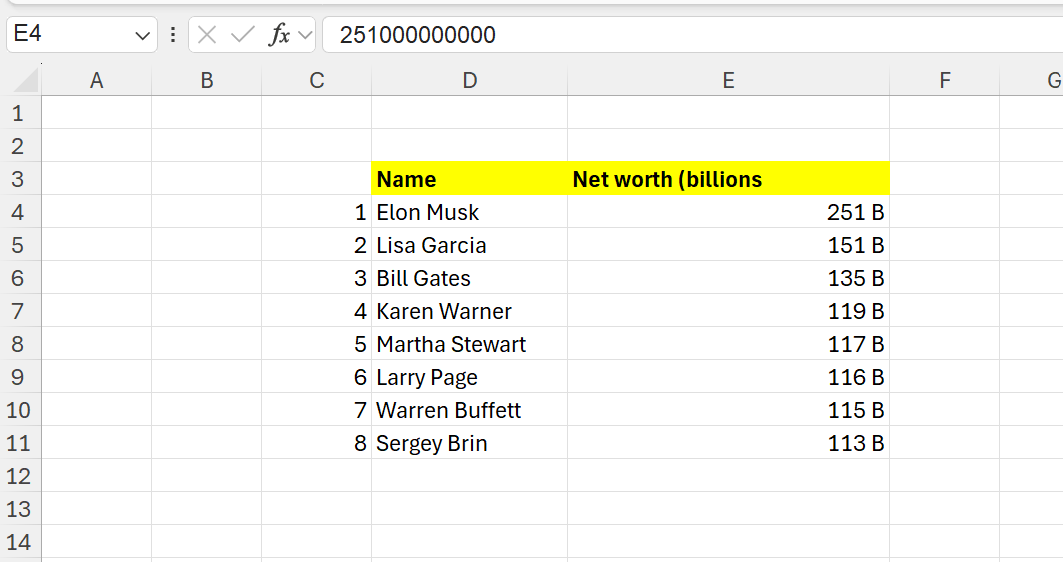
Task 9. Less Zeros… only “B” / 23
2/24/93 "billions" 24.
Instructions:
Explain how to format numbers so only the first three digits appear,
followed by a B.
If necessary, click the image below to make it larger. Image opens in a new window.
Task 10. Protect Cells / 41
8/7/183 "protect" 7.
Instructions:
Explain how to protect cells E4 through E11 so they cannot be changed or deleted.
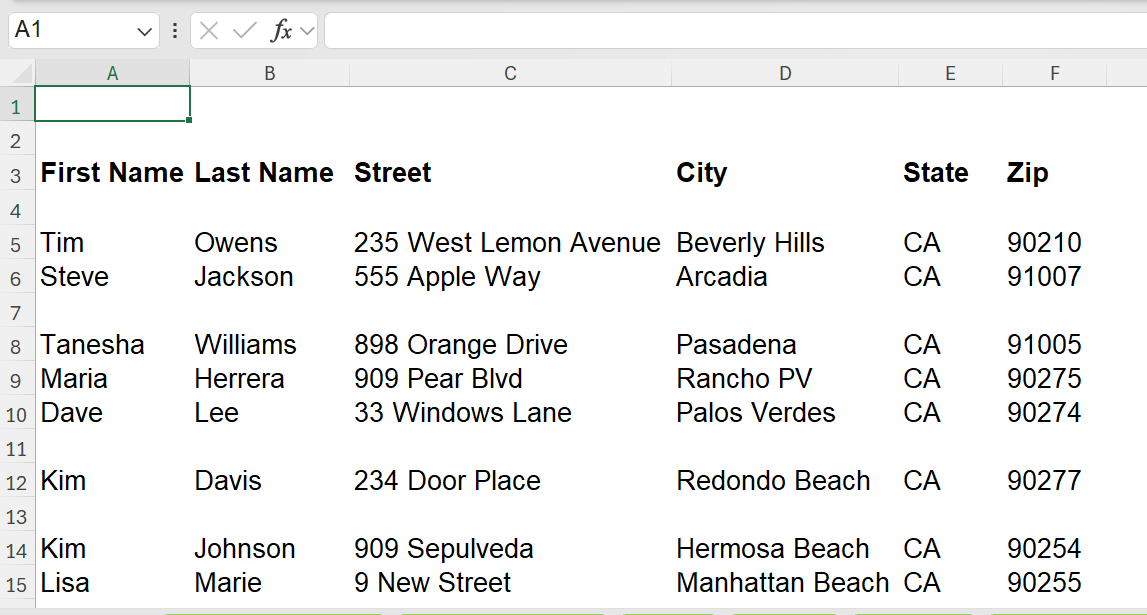
Task 11. Empty Rows / 40
3/25-26/80 "delete" 26.
Instructions:
Explain how to delete all empty rows and move remaining rows up at the same time.
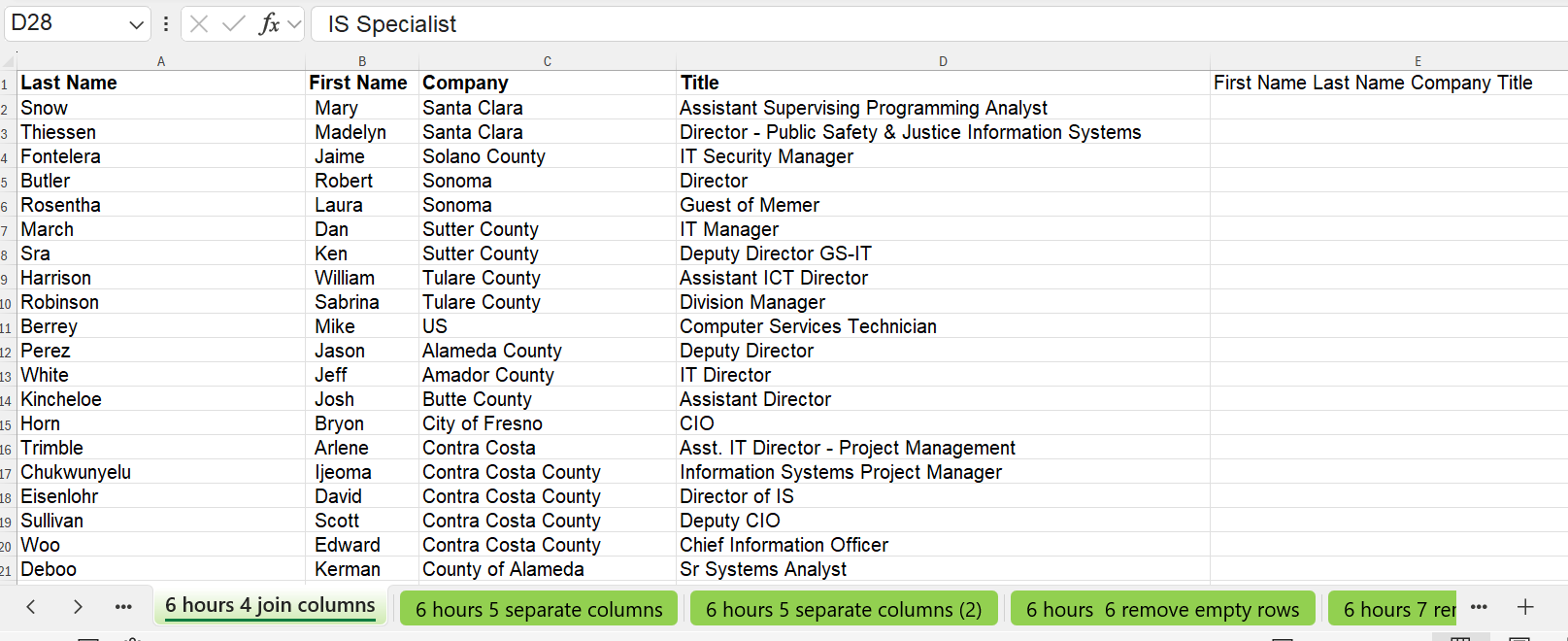
Task 12. Join Columns / 65
7/17/57 "join" 17.
Instructions:
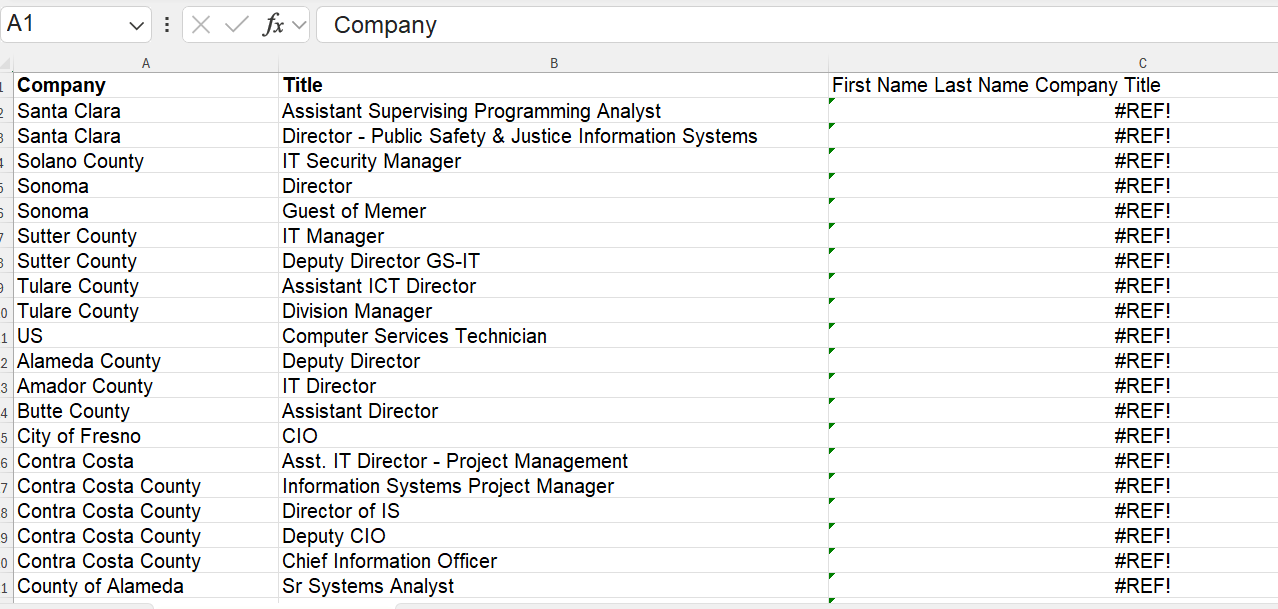
Explain the formula used in cell E2 to join First Name (Column B) and
Last Name (Column A) with a space.
After copying the formula, explain what happens when Columns A and B are deleted
and how to fix it.
Task 13. Macro Create / 65
4/14/66 "macro" 14.
Instructions:
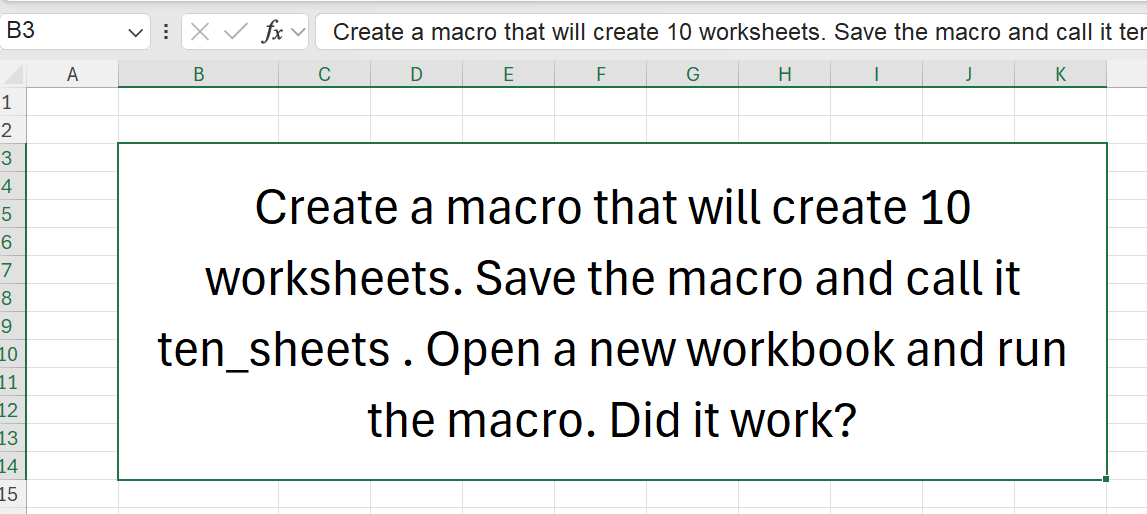
Explain how to create a macro named ten_sheets
that works in the current and future workbooks.
Task 14. Macro Run It / 15
4/15/31 "macro" 15.
Instructions:
Run the macro and explain whether it created ten worksheet tabs.
Task 15. Macro on QAT / 30
4/18/61 "macro" 18.
Instructions:
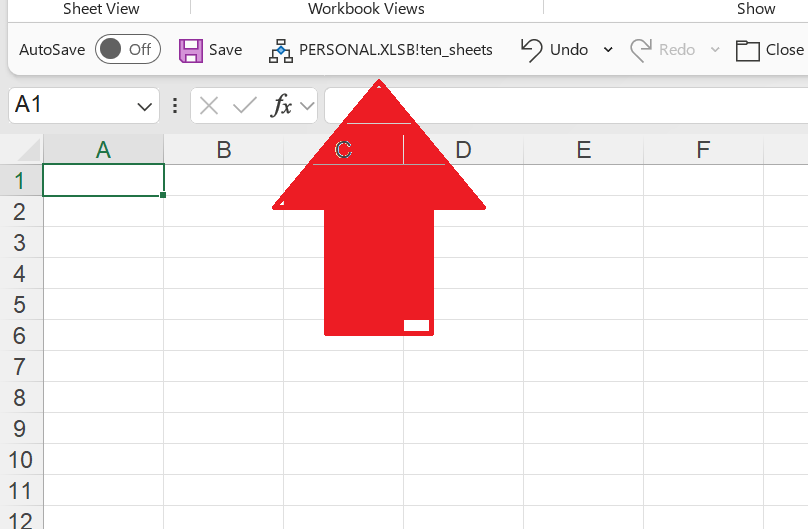
Explain how to add the macro to the Quick Access Toolbar.
Task 16. Macro Icon / 30
4/19/40 "macro" 19.
Instructions:
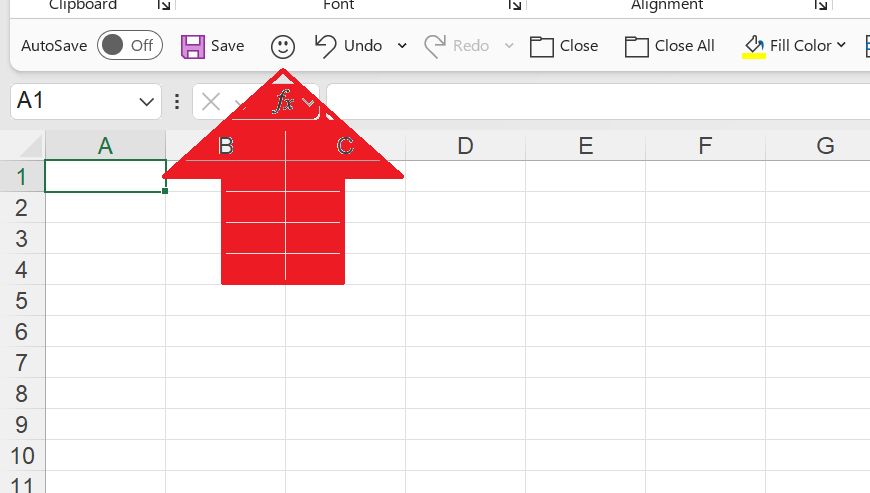
Explain how to change the macro on the QAT to a custom icon.

Tim Owens – Admin Professional Consultant
Saving staffing agency owners millions in revenue since 2006
Hero to the modern-day Admin Professional



Contact Tim Owens
Phone: 1-(310)-625-7711
Unfortunately no texting
Los Angeles office
Email: tvowens@outlook.com
To return to the top of this page, hold CTRL and press HOME.
Instructions:
In cell D2, explain how to create the formula you would use to remove the extra
spaces in front of the name in cell A2.
Look at the words in column A.
Notice some words in column A have empty spaces before the word.
You will click on cell d2 and create a formula to show the same
data in column a without the empty spaces.
Explain with formula and how you would do it. (20)
Click for answer video
7/19/53 "value" 19.
Instructions:
You have completed 1 (above). Explain the error message in column C and how you would fix it.
Click for answer video
1/19/58 "separate" 19.
Instructions:
Explain the steps you would take to separate the city, state, and zip into their own column.
If necessary, click the image below to make it larger. Image opens in a new window.
Click for answer video
8/9/39 "gantt" 9.
Instructions:
Explain the steps you would take to open a new workbook and create this Gantt chart.
If necessary, click the image below to make it larger. Image opens in a new window.
8/13/32 "loan" 13.
Instructions:
Explain the steps you would take to open a new workbook and create this loan table.
If necessary, click the image below to make it larger. Image opens in a new window.
mark 2/11/39
"duplicate" 11. sort 7/8/46
"duplicate" 8. remove 7/10/29
"duplicate" 10.
Instructions:
In column A there are over 5,000 entries and over 1,000 duplicates. Explain the steps you would take to:
(1) Mark duplicates in red
(2) Sort red to the top
(3) Remove duplicates
If necessary, click the image below to make it larger. Image opens in a new window.
3/23-24/58 "transpose" 24.
Instructions:
Explain how you would change the data in A2 through F7 so it appears in A12 through F17
If necessary, click the image below to make it larger. Image opens in a new window.
7/22/51 "top" 22.
Instructions:
Explain how to mark the top 10 sales values using “Light Red Fill with Dark Red Text,” then change it to show only the top 3.
If necessary, click the image below to make it larger. Image opens in a new window.
2/24/93 "billions" 24.
Instructions:
Explain how to format numbers so only the first three digits appear, followed by a B.
If necessary, click the image below to make it larger. Image opens in a new window.
8/7/183 "protect" 7.
Instructions:
Explain how to protect cells E4 through E11 so they cannot be changed or deleted.
3/25-26/80 "delete" 26.
Instructions:
Explain how to delete all empty rows and move remaining rows up at the same time.
7/17/57 "join" 17.
Instructions:
Explain the formula used in cell E2 to join First Name (Column B) and Last Name (Column A) with a space.
After copying the formula, explain what happens when Columns A and B are deleted and how to fix it.
4/14/66 "macro" 14.
Instructions:
Explain how to create a macro named ten_sheets that works in the current and future workbooks.
4/15/31 "macro" 15.
Instructions:
Run the macro and explain whether it created ten worksheet tabs.
4/18/61 "macro" 18.
Instructions:
Explain how to add the macro to the Quick Access Toolbar.
4/19/40 "macro" 19.
Instructions:
Explain how to change the macro on the QAT to a custom icon.
Hero to the modern-day Admin Professional
Phone: 1-(310)-625-7711
Unfortunately no texting
Los Angeles office
Email: tvowens@outlook.com